You landed, turned off airplane mode, and... nothing. Before you worry, know this: the large majority of eSIM issues come down to one of five settings, and all of them take under a minute to fix. Work through this list in order.
1. Is data roaming turned on?
This is the number one cause. Travel eSIMs technically operate as roaming SIMs on local partner networks, so data roaming must be ON for the eSIM line.
- iPhone: Settings → Cellular → tap your travel eSIM → turn on Data Roaming.
- Android: Settings → Network & Internet → SIMs → your travel eSIM → turn on Roaming.
2. Is the eSIM selected for mobile data?
Your phone can hold several SIMs, but only one provides data at a time. Make sure the travel eSIM, not your home SIM, is selected as the data line. On iPhone this is Settings → Cellular → Cellular Data. On Android it is in the SIMs menu.
3. Is the eSIM line turned on at all?
After installation, the new line sometimes stays toggled off. Open your SIM settings and check the travel eSIM shows as active. While you are there, confirm your home SIM has data turned OFF, so you do not get roaming charges from home.
4. Try selecting a network manually
If you see "No Service", the phone may be clinging to a network the eSIM cannot use. Go to network selection, turn off automatic, wait for the list, and pick a different network. If one does not connect, try the next. Then switch back to automatic.
5. Restart the phone
It is a cliche because it works. A restart forces the phone to re-register on the network with fresh settings. Do this after any settings change above.
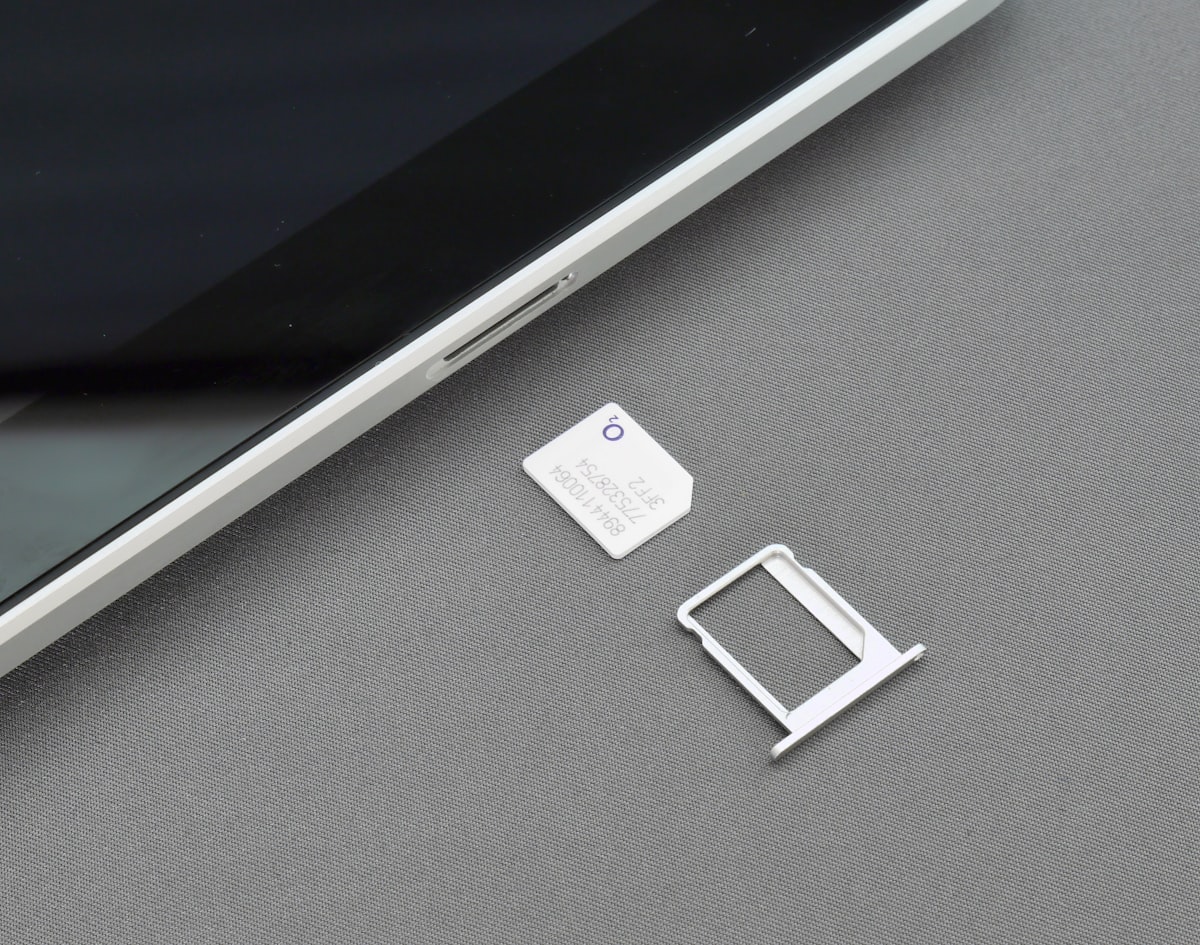
If installation itself failed
- You need a working internet connection (Wi-Fi is fine) to install an eSIM.
- An eSIM QR code can usually be installed only once. If you already installed it, do not delete it, the line may just need to be enabled in settings.
- If the install button does not work, try scanning the QR code from the email using a second device's screen, or enter the details manually, both options are in your delivery email.
Still stuck?
Contact us and include three things: your order code, your phone model, and what step fails. That lets us check your eSIM's status with the network right away instead of asking you questions first. We answer at [email protected], and you can check your data balance any time at telisco.com/my-esims.
For a full setup walkthrough with screenshots, see our eSIM setup guide.
Need a plan that just works?
Telisco eSIMs come with instant email delivery, three install options, and live usage tracking.
Browse eSIM plans →Frequently asked questions
Why does my eSIM show "No Service"?
Usually one of three things: data roaming is off for the eSIM line, the phone latched onto a network the eSIM cannot use (select one manually), or the line itself is toggled off in SIM settings.
I deleted the eSIM by mistake. Can I reinstall it?
An activation code normally works only once, so do not delete an eSIM to "retry" it. If it is already gone, contact support with your order code and we will sort out a reissue.
Does airplane mode reset anything important?
No, toggling airplane mode is safe and often helpful, it forces the phone to search for networks from scratch without touching your eSIM or settings.
Why is my data slow even though I have signal?
Check that the travel eSIM, not your home SIM, is selected as the data line, and try manually selecting a different network, coverage quality varies between partner networks in the same city.
How do I check how much data I have left?
Log in at telisco.com/my-esims with your email and order code, your live usage is shown there, and we also email you automatically at 50%, 80% and 95% usage.